Acceptance SOP: what to do in the first 30 minutes
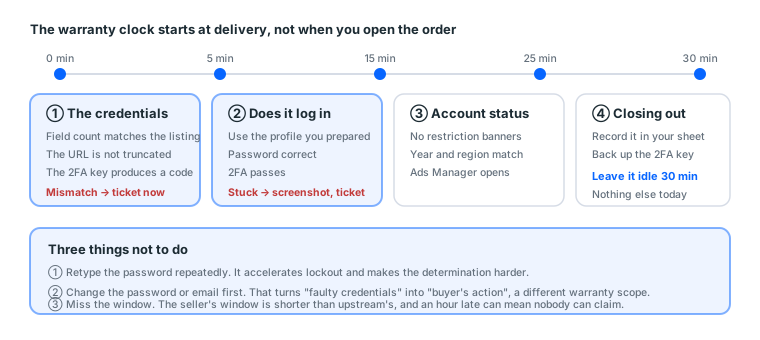
Within 30 minutes of receiving credentials, complete three stages: the fields match the description, it logs in successfully, and the account shows no warnings. Anything that fails means screenshot and open a ticket, not repeated attempts on your own.
One checklist. Finishing it is what counts as taking delivery. Miss the warranty window and anything that goes wrong afterwards is yours to absorb.
Warranty windows are timed, and the clock starts at delivery, not when you open the order. So the first thing to do with credentials is inspect, not use.
1. Why the window is so tight
Few sellers explain this, and it accounts for the urgency in this whole piece.
The window a seller gives you is necessarily shorter than the one upstream gives the seller. Upstream offers 2 hours, the seller offers you 1. Upstream offers 24, the seller offers 12.
That buffer is the seller's time to claim upstream. An hour late from you can mean the seller absorbs it.
| Upstream gives the seller | Seller gives you | Buffer |
|---|---|---|
| 2 hours | 1 hour | 1 hour |
| 12 hours | 6 hours | 6 hours |
| 24 hours | 12 hours | 12 hours |
So a tight window is not obstruction; it is how this supply chain is shaped. Once you see that, "inspect on arrival" stops being a rule and becomes your own interest.
Our catalogue's actual distribution
Across 145 display groups:
| Warranty we commit to | Groups | Share |
|---|---|---|
| 1 hour (first login only) | 120 | 82.8% |
| 36 hours | 15 | 10.3% |
| 24 hours | 1 | 0.7% |
| No after-sales at all | 9 | 6.2% |
Over 80% give you one hour. Which is why "confirm you have 30 free minutes" belongs on the pre-purchase checklist rather than the post-purchase advice.
2. The acceptance checklist
Minutes 1 to 5: the credentials themselves
- The number of fields matches the description (it says 2FA, so that field must exist)
- Nothing is obviously truncated (BM login URLs are long; confirm you have all of it)
- The 2FA key is loaded into a TOTP app and produces six digits
Anything failing means screenshot and open a ticket immediately. That is a description mismatch, which falls under first login.
How to check the fields quickly
No need to ask anybody; format tells you:
| Field | Format signature |
|---|---|
| 2FA key | Only A–Z and 2–7, and long. No 0, 1, 8 or 9 |
Contains @ |
|
| Facebook or BM ID | Eight or more digits, nothing else |
| Login URL | Starts with http, usually very long |
| Phone | Contains + or a separated digit string |
| What is left | Username and password, order varies by product |
If you cannot tell, paste them into the credential parser and it labels each field. Whether the 2FA key is valid takes ten seconds with the 2FA generator. Both run entirely in your browser and upload nothing.
Minutes 5 to 15: does it log in
- Log in using the separate browser profile you prepared in advance
- Password correct
- 2FA passes (if not, check device time first; see how to use a 2FA key)
- You reach the account home page
Stuck at any step means screenshot (address bar and error message included) and a ticket. Do not keep retrying. Repeated wrong passwords push the account into lockout faster and complicate the determination.
Five ways login gets stuck, and what each means
| What you see | Means | What to do |
|---|---|---|
| Wrong password | Faulty credentials | Screenshot, ticket, first-login category |
| Account disabled | Check the disable date | Earlier than the ship date is first-login category |
| ID upload demanded | You cannot pass it | Screenshot, ticket, first-login category |
| Asked to identify friends | You do not know those people | Check whether it can be skipped, then ticket |
| 2FA keeps failing | Nine times out of ten, clock drift | Sync time and retry; only then a ticket |
The fifth deserves attention: sync the time before opening a ticket. Clock drift is on your side, and clearing it first means you do not lose a round trip out of your own window.
Minutes 15 to 25: account status
- No restriction or warning banners
- Registration year and region match the description
- Friend or follower counts roughly match (if the product stated them)
- For ad accounts: Ads Manager opens and the account status is normal
- For BMs: it opens and the free ad account slots match the description
- For Pages: it exists, status is normal, and you can manage it
Extra checks by product type
Different products need different things checked. Work straight off this table:
| Product type | Also confirm | Where |
|---|---|---|
| Personal or aged account | Registration year, friend count, restriction banners | The profile page |
| Ad account | Ads Manager opens, account status, existing violations | Account Quality |
| BM | Free ad account slots, any unfamiliar admins | Business Settings → People |
| Page | It exists, you are an admin, follower count matches | The Page's professional dashboard |
"Any unfamiliar admins" on the BM row is skipped most often and matters most. If the previous admin is still listed, they can remove you at any time. An unfamiliar account means open a ticket immediately.
Minutes 25 to 30: closing out
- Record the account details in your sheet (account, purchase date, region, purpose, status)
- Back the 2FA key up to a second location
- Close the tab, leave it for 30 minutes, do nothing else with it today
Why the last item matters
The most counter-intuitive step, with a very clear mechanism.
An account logged into from an unfamiliar device enters an observation state anyway. If you then immediately change the password, change the email, change the name, upload a photo and add friends, that sequence is identical to what somebody who stole an account does.
The platform does not need to recognise who you are. It only needs to recognise the sequence.
The correct order: log in, sit still for 30 minutes, glance at the feed, click a couple of pages, and stop there for the day. Full detail in the first hour with a new account.
3. What is always refundable
No hesitation on these; open a ticket:
| Situation | Reason |
|---|---|
| Wrong password | First-login category, unconditional |
| Disabled, with a disable date before the ship date | It died before shipping |
| ID upload demanded at first login | You cannot pass it |
| 2FA key still invalid after syncing time | Faulty credentials |
| The description says X and there is no X | Description mismatch |
| Ad account or BM slot count does not match | Description mismatch |
| An unfamiliar admin inside the BM | The assets are not secure |
4. What is not
Worth stating plainly to avoid disputes:
| Situation | Reason |
|---|---|
| Disabled after you started using it | Post-login death, judged by the price tier's warranty hours |
| Broken after you changed the password, email or name | Your action |
| Reported after the window closed | The window is hard; upstream applies the same to us |
| Broken after using shared IPs or several accounts in one environment | Environment problem |
Items under 20 USDT cover first login only. Not a vendor being stingy; it is the market's line, because once you are logged in the seller cannot verify what happened.
What that line actually means
For you, it means: a warranty covers "the goods were faulty". It does not cover "you broke them".
So what actually saves you money is not the warranty terms. It is the warming-up material:
| What you want to avoid | Covered by warranty | Covered by operation |
|---|---|---|
| It will not log in on arrival | ✅ | – |
| It dies after three days | ❌ | ✅ the first seven days |
| Disabled after scaling | ❌ | ✅ the gradual scaling curve |
| Death caused by environment | ❌ | ✅ device and network |
The warranty covers one of the four. Which is why we put the weight on the guides.
5. What goes in a ticket
Everything at once, resolvable in one round:
- The order number
- A screenshot (full screen, including the address bar and the error message)
- One sentence on what you did and what you saw
High-value items above about 60 USDT need a screen recording: continuous, from opening the browser to the problem appearing, uncut.
After-sales runs through tickets, not private messages. Private messages leave no record, have no traceable response time, and cannot be checked afterwards. That works against both sides.
A useful screenshot versus a useless one
| Useless | Useful | |
|---|---|---|
| Scope | Only the error message | The full browser window |
| Address bar | Missing | Present, so the page is identifiable |
| Time | Not visible | Visible in the system bar |
| Account | Not identifiable | Visible in the input field |
With only the error message, the seller cannot confirm which page you were on or which account you used, which stretches the exchange over several rounds while your window runs down.
How to write the one sentence
No story. Facts:
Logged in with a separate Chrome profile, entered the first and
second credential fields, got "incorrect password". No other actions.
Three elements: the environment you used, what you did, what you saw. Twenty words is enough.
"No other actions" is the important part. It removes any question about whether you changed something first, which speeds up the determination considerably.
5b. Full acceptance process for six product types
The general flow above; specific operations here.
Personal and aged accounts
What to check: it logs in, no restriction banners, registration year and region match.
| Step | How | Normal |
|---|---|---|
| Log in | Separate profile, paste credentials | Straight to the feed |
| Check banners | Top of the page | No warning bar |
| Check the year | Profile → About → joined date | Matches the description |
| Check friends | The profile | Roughly matches, if stated |
"Check banners" is the one people miss. Some accounts log in fine but carry a "your account is restricted" bar at the top, and those cannot run ads.
Ad accounts
Everything above, plus:
| Step | How | Normal |
|---|---|---|
| Open Ads Manager | facebook.com/adsmanager |
It opens and the account is visible |
| Check account status | The account selector, top left | Shows active |
| Check Account Quality | The Account Quality page | No existing violation records |
| Check the spending limit | Payment settings | A number exists (low is normal on a new account) |
Checking Account Quality matters most and is skipped most. An ad account that already carries violation records keeps them when you take it over, and its threshold is lower than a clean account's.
BMs
| Step | How | Normal |
|---|---|---|
| Open the login URL | Paste that long URL from the credentials | Business Settings loads |
| Check ad account slots | Business Settings → Accounts → Ad Accounts | Count matches the description |
| Check the People list | Business Settings → Users → People | Only you |
| Check for a Page | Business Settings → Accounts → Pages | Matches the description |
Checking the People list is the single most important step in BM acceptance. If the previous admin is still there, they can remove you at any time and your money is gone. An unfamiliar account means a ticket immediately, not attempting to remove them yourself.
Pages
| Step | How | Normal |
|---|---|---|
| Open the Page URL | Directly | It exists and is not taken down |
| Confirm your role | Page settings → Page access | You are an Admin, not an Editor |
| Check followers | The Page home | Matches the description |
| Check whether it is in another BM | Try adding it to your BM | It adds |
The last one causes the most trouble. A Page belongs to exactly one BM at a time, so if it still sits under the seller's BM, you cannot add it. That is a description mismatch and grounds for a ticket.
Email products
| Step | How | Normal |
|---|---|---|
| Log into the mailbox | The credentials | It opens |
| Receive a test message | Send one from your own address | It arrives |
| Try sending | Reply to it | It sends |
"It receives" and "it opens" are two different things. Some mailboxes log in but are restricted from receiving, and receiving verification mail is usually the whole reason you bought one.
Services (follower growth, verification codes)
Nothing to log into here. What you are checking is whether we received what we need:
| Step | How |
|---|---|
| Confirm the fields to supply | The "prepare before ordering" section of the product page |
| Supply the correct link | Follower products take the Page URL; like and view products take that specific post's URL |
| Confirm the scope | The quantity in the product name matches the description |
A wrong link means the work is done somewhere else, and it cannot be reversed. The most common dispute with services, so click your own link once before submitting it.
6. What to prepare before ordering
The warranty clock starts at delivery, so preparation happens before you order.
- One separate browser profile per account (Chrome's "Add profile" is enough)
- A stable network matching the account's region
- A TOTP app installed
- A tracking sheet (account, purchase date, region, purpose, status)
- Confirmation that you have 30 free minutes right now
The last is the most overlooked. Do not buy right before going out, and do not buy at midnight planning to look at it tomorrow.
What the tracking sheet needs
Account | Purchase date | Type | Region | Warranty hours | Inspection completed | Purpose | Status
Most people skip "warranty hours" and "inspection completed", and those two are the decisive columns in a dispute. To show you inspected and reported inside the window, those columns are the evidence.
Buying several at once
- Inspect one at a time; do not log into five simultaneously
- Budget the time: about 30 minutes each, so five is two and a half hours
- Confirm you genuinely have that much time
A lot of people buy five, inspect the first, and let the other four's windows expire. If you do not have the time, buying in batches is safer.
6b. Timing: when not to order
The clock starts at delivery, so when to order is itself a decision.
Do not order at these five moments
| Timing | Why |
|---|---|
| Right before going out | The clock runs while you are away from the computer |
| Before bed | Planning to inspect tomorrow? The window may already be gone |
| In a meeting | Same |
| Somewhere with unstable network | A failed login becomes indistinguishable from a network problem |
| From your phone | A first login needs a separate desktop profile |
The second is the most common. Seeing something at midnight and buying it, planning to deal with it in the morning, while 80% of items have a one-hour warranty.
The correct ordering sequence
1. Confirm the next 30 minutes will not be interrupted
2. Open the separate browser profile you will use (open it first)
3. Open your tracking sheet
4. Have the TOTP tool ready
5. Order
6. Credentials arrive; start inspecting immediately
Steps 2 to 4 happen before ordering, because together they take about five minutes, and those five minutes would come out of your warranty window.
Automatic delivery versus manual fulfilment
Across our 145 groups:
| Delivery | Groups | Share | When you receive it |
|---|---|---|---|
| Automatic | 116 | 80.0% | Immediately after payment |
| Service (we perform it for you) | 29 | 20.0% | After you supply the details |
On automatic items, the warranty starts the moment payment succeeds. So "prepare first, then order" matters most for that 80%.
Manually fulfilled and service items differ; you get time to prepare. But those require you to supply details first (a Page link, a name to change to), and having those ready in advance is also worth doing.
7. The first week after acceptance
Acceptance is the starting point. This is what the next seven days look like; the full version is the first seven days.
| Day | Do | Do not |
|---|---|---|
| D1 | Log in, sit idle 30 minutes, scroll the feed | Change details, use mobile |
| D2 | Log in 10–15 minutes, like a few posts | Post, send messages |
| D3 | First login on the mobile app, look only | Use desktop and mobile simultaneously |
| D4 | Follow 1–2 public groups or Pages | Add friends in bulk |
| D5 | Leave one normal comment | Post links |
| D6 | Open Ads Manager once, look only | Build an ad immediately |
| D7 | Attach a payment method (if advertising) | Set a large budget right after attaching |
Password and email changes belong after days 3 to 7, and confirm 2FA works first, or you lock yourself out.
8. Four common acceptance mistakes
① Changing the password on arrival. It feels safer, and it is the most stolen-account-shaped behaviour there is. It also converts "faulty credentials" into "buyer's action", a completely different warranty scope.
② Retrying repeatedly when it will not log in. Repeated wrong passwords accelerate lockout and complicate the determination. Two attempts, then screenshot and a ticket.
③ Doing acceptance on the mobile app. A first login belongs in a separate desktop profile. Mobile app login traces differ from desktop, and both appearing on the same day is a strong anomaly signal.
④ Starting to use it as soon as inspection passes. After acceptance, leave it idle for 30 minutes and do nothing else that day. Rushing to use it is how a lot of people kill an account on day one.
8b. In a dispute, records decide the outcome
Acceptance is not really about finding problems. It is about having evidence when you find one. This is what evidence looks like.
Three disputes and what each needs
| Dispute | What you must show | Evidence needed |
|---|---|---|
| Faulty credentials | I entered what the credentials said and got an error | Screenshot with address bar and input field |
| Disabled before shipping | The disable date precedes the ship date | Screenshot of the account status page with the date |
| Description mismatch | The listing said X and there is no X | Two screenshots: the listing and the credentials |
The third needs two screenshots. People submit one and end up going back and forth.
Why timestamps matter
Warranties are timed, and disputes often turn on whether you reported inside the window.
Three things that establish time:
| Evidence | Strength | How to get it |
|---|---|---|
| The ticket's system time | High | Automatic when you open one |
| The system clock inside a screenshot | Medium | Capture the whole screen |
| Your own tracking sheet | Low | You record it |
The ticket timestamp is the strongest, which is why the first move when stuck is opening a ticket rather than working out how to fix it. You can open a ticket to hold the time and keep trying afterwards. In the other order, the window can expire while you are still trying.
One practical habit
Capture the whole screen, not just the browser.
The whole screen includes the system clock and date, which is automatic proof of time at zero cost. Small habit, useful in a dispute.
Why private messages are not evidence
| Ticket | Private message | |
|---|---|---|
| Has a reference number | ✅ | ❌ |
| Has a timestamp | ✅ | 🟡 Deletable by either side |
| Somebody else picking it up | Sees the history | Starts from scratch |
| Checkable afterwards | Yes | Difficult |
The problem with private messages is not that anyone will deny things. It is that "no record" leaves both sides unable to determine anything. Three months later you will not remember what was said either.
8c. Beyond acceptance: the monthly routine
Acceptance is one-off, but account health needs ongoing attention.
Weekly (about 3 minutes)
- The account logs in normally, no new restriction banners
- Ad account status is normal
- No unusual login notifications
Monthly (about 10 minutes)
- No unfamiliar accounts in the BM's People list
- The second admin is still there
- No payment method about to expire
- The backup account still logs in
- The 2FA key backup exists and is current
"The backup account still logs in" is the most overlooked. A backup untouched for three months may already need re-verification, and you find out on the day you need it.
Why these belong in the acceptance guide
Because they use the same logic: confirm something is good before you need it.
Acceptance asks "is what I bought good". The monthly check asks "is what I hold still good". Both spend minutes to avoid hours.
9. This whole guide as one card
Stick it next to your tracking sheet:
Before ordering:
  □ Separate profile created
  □ Network region matches
  □ TOTP tool ready
  □ Tracking sheet open
  □ I have 30 minutes right now

The 30 minutes after delivery:
  0–5 min    Do the credential fields match
  5–15 min   Does it log in
  15–25 min  Any warnings on the account
  25–30 min  Record, back up, leave it idle

Stuck at any step:
  Screenshot (with the address bar) → ticket (with the order number) → one sentence
  Do not retry repeatedly. Do not change details first.

After acceptance passes:
  Leave it idle 30 minutes. Nothing else with it today.
Next: how Meta policy changes affect account survival.
Sources (all official pages, checked 2026-09-08). Prices, catalogue distributions and warranty ratios in this article are our own catalogue and ticket data, not taken from these pages:
- How two-factor authentication works on Facebook — Facebook Help Centre — facebook.com
- Get verification codes with Google Authenticator — Google Account Help — support.google.com
- Create and manage a business portfolio (Business Manager) — Meta Business Help Centre — facebook.com
- Advertising Standards — Meta Transparency Center — transparency.meta.com
FAQ
Do I need a screen recording for acceptance?
A screenshot submitted inside the window is enough; video is not mandatory. Only high-value items above about 60 USDT require a recording.
What is always refundable?
Wrong password, a disable date earlier than the ship date, an ID upload demanded at first login, a 2FA key still invalid after syncing time, or the description saying X when there is no X.
Why is the warranty window so short?
The window we give customers is necessarily shorter than the one upstream gives us, and that buffer is our time to claim. An hour late from you can mean we absorb it.
When does the warranty start?
At the moment of delivery, not when you open the order. Which is why the first thing to do with credentials is inspect, not use.
What should the screenshot show?
The full screen, including the address bar and the error message. With only the error message, the seller cannot confirm which page you were on or which account you used.
Can I retry a few times if it will not log in?
No. Repeated wrong passwords push the account into lockout faster and make "faulty credentials or your handling" much harder to determine.
Can I change the password right after acceptance?
No. Changing the password, changing the email and uploading an avatar on day one is the exact sequence somebody who stole an account produces. Wait 3 to 7 days of stable use.
What if 2FA keeps failing?
Nine times out of ten the device clock is off. TOTP depends entirely on time, and more than about 30 seconds out means every code fails. Enable automatic time sync and retry.
The BM login URL will not open?
Check whether it was truncated first. BM login URLs are long and the tail is easy to miss when copying.
What do I need ready for acceptance?
A separate browser profile, a stable network matching the account's region, a TOTP tool, and a tracking sheet. All prepared before ordering.
What goes in a ticket?
The order number, a full screenshot, and one sentence on what you did and what you saw. Everything at once, resolvable in one round.
What is not refundable?
Disabled after you started using it, broken after you changed details, reported after the window closed, or broken after using shared IPs or several accounts in one environment.
What do I do after acceptance?
Leave it idle for thirty minutes and do nothing else with it that day. A freshly logged-in account is still under observation, and a burst of activity is the most stolen-account-shaped behaviour there is.
How do I inspect several accounts at once?
One at a time; do not log into five simultaneously. And buying many at once may leave you without time to inspect them all inside the window.
What do I prepare before ordering?
Confirm you have 30 free minutes right now. The clock is running, so do not buy right before going out.
Want the parts this article talks about?
Browse the full catalogueRead next
Running Facebook Ads: the complete path from nothing to your first live ad
The whole route on one page. From "where is Ads Manager" to "how do I
The first hour with a new account
Get the order wrong and a healthy account dies anyway. This hour is al
Cookie Login for Bought Accounts: AdsPower or No Software
"The seller says \"use the cookies to log in\" and stops there. This c
What to do when an account hits a checkpoint
Work out which kind you are looking at first. Some clear once you veri
Six things to know before buying a Facebook account
This market runs on serious information asymmetry. Here are the questi
Paying with USDT for the first time
This site takes USDT. If you have never touched crypto, here is the wh