The first hour with a new account
The first hour has two jobs: confirm it logs in (the only thing that matters inside the warranty window), then leave it idle for 30 minutes doing nothing. Do not change the password, do not change the email, and do not log in from the mobile app that day.
Get the order wrong and a healthy account dies anyway. This hour is also your warranty window, so finishing it is what counts as taking delivery.
Once credentials arrive, do not rush to use them. This hour has two jobs: confirming the goods are sound (inside the warranty window), and not breaking sound goods.
1. Inspect first, use second
The warranty window is timed (per the listing, usually 1 to 12 hours). Confirming it logs in matters more than anything else.
- Open the separate browser profile you created in advance.
- Log in with the credentials. If cookies came with them, use the cookies rather than the password: how to do it, and how to read a failure.
- Does it get in? That is the only thing to establish immediately.
Any of the following means screenshot and open a ticket immediately, not trying to solve it yourself:
| What you see | Means | Action |
|---|---|---|
| Wrong password | Faulty credentials | First-login category, unconditional |
| Disabled (disable date before ship date) | It died before shipping | First-login category, unconditional |
| The 2FA code keeps failing | Bad key, or clock drift | Sync time first, then a ticket |
| ID upload demanded | This one cannot pass | Open a ticket |
The screenshot needs the full screen (address bar and error message included). A screenshot inside the window is enough; video is not required. Only high-value items above about 60 USDT need a recording.
Why this hour matters so much
Across our 145 display groups:
| Warranty we commit to | Groups | Share |
|---|---|---|
| 1 hour (first login only) | 120 | 82.8% |
| 36 hours | 15 | 10.3% |
| 24 hours | 1 | 0.7% |
| No after-sales at all | 9 | 6.2% |
Over 80% give you one hour. That hour is your only window for an unconditional claim. Past it, anything is "post-login death", judged by price tier.
And the clock starts at delivery, not when you open the order. So "inspect on arrival" is not a rule imposed on you. It is your own interest.
The order for troubleshooting a failing 2FA code
The most common sticking point in the first hour. Work through it in this order:
- Sync the time. Nine times out of ten that is the cause. TOTP depends entirely on time, and more than about 30 seconds out means every code fails
- Confirm the key was pasted correctly. Delete spaces, no line breaks. The key uses only A–Z and 2–7, with no 0, 1, 8 or 9
- Cross-check with the 2FA generator. It computes in your browser, which rules out a misconfigured app
- All three done and still failing → open a ticket. That is a credentials problem, first-login category
Do not skip the first step. Clock drift is on your side, and clearing it first means you do not lose a round trip out of your own window.
2. After a successful login: do nothing
Literally. Once you are in, leave it alone for thirty minutes.
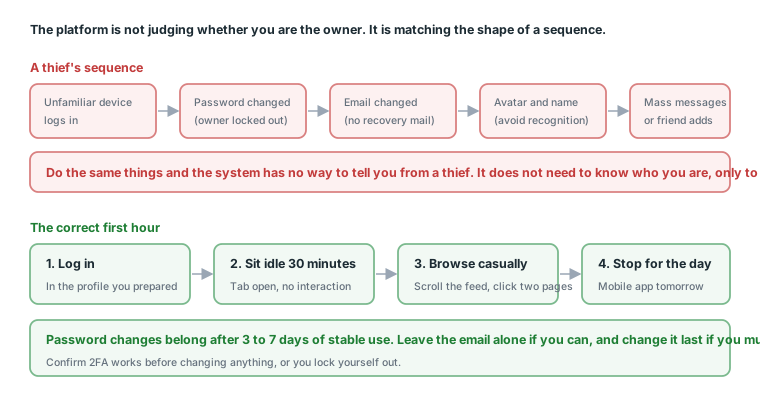
Why: an account logged into from an unfamiliar device enters an observation state anyway. If you then immediately change the password, change the email, change the name, upload a photo and add friends, that sequence is identical to what somebody who stole an account does. The platform does not need to recognise who you are. It only needs to recognise the sequence.
The correct order:
- Log in successfully
- Sit idle for 30 minutes (tab open, no interaction)
- Glance at the feed, click a couple of pages (like a person using it)
- Stop there for the day
What a thief's sequence looks like
Put side by side, it becomes clear why those four actions are so sensitive:
| What a thief does | Purpose |
|---|---|
| Change the password immediately | So the owner cannot get back in |
| Change the email immediately | So the owner receives no recovery mail |
| Change the avatar and name | To avoid recognition by the owner's friends |
| Message or add friends heavily | Start exploiting the account |
Those four are exactly the four things a beginner most wants to do on arrival. You want to change the password for security and the avatar because "this is mine now". Completely different motives, identical actions.
What the thirty idle minutes actually do
Not a ritual. They let "logging in" exist as its own event, unconnected to any change action.
| Sequence | What the system sees |
|---|---|
| Log in → idle → browse → leave | One normal login |
| Log in → change password → change email | One suspected takeover |
The only difference is those thirty minutes.
3. The mobile app comes tomorrow
Plenty of people log into the mobile app on delivery day, and then the account is gone.
Same reason: a brand-new desktop environment plus a brand-new mobile device appearing on the same day is a strong anomaly signal. Let the desktop login settle for a day, then add mobile.
How to add mobile the next day
| Approach | Why |
|---|---|
| Connect to your home Wi-Fi before logging in | Makes the phone's network match the desktop's |
| Look only, change nothing | Same principle as day one |
| Do not have the desktop open simultaneously | One account active on two devices at once is jarring |
The first is the most overlooked. Phones default to mobile data, which is a completely different exit from your home broadband. Connecting to Wi-Fi first keeps both locations consistent.
4. When to change the password and email
- Not on day one.
- General guidance: change the password after 3 to 7 days of stable use.
- Changing the bound email carries more risk than changing the password. Leave it alone if you can, and if you must, do it last.
- Confirm 2FA works before changing anything, or you lock yourself out.
Note: most low-priced accounts cover first login only. Changing details on day 3 and killing the account is your action and outside the warranty. Not a vendor being stingy; the whole market draws that line, because once you are logged in the seller cannot verify what happened.
Risk by timing
| When | Risk of a password change | Risk of an email change |
|---|---|---|
| The day it arrives | 🔴 Highest | 🔴 Highest |
| Days 2–3 | 🟠 Elevated | 🔴 High |
| After 3–7 days of stable use | 🟢 Acceptable | 🟠 Still elevated |
| During any period of unusual signals | 🔴 Do not | 🔴 Do not |
The email column runs one level higher throughout, because email is the primary account recovery route, so changing it changes the proof of ownership.
If you must, the correct order
- Confirm 2FA works (compute one code in your authenticator app and pass a check)
- Confirm you have recorded the current password and 2FA key
- Change only the password, not the email at the same time
- Do nothing else with the account that day
- Observe for two days with no anomalies before the next change
Step 1 cannot be skipped. If 2FA has a problem after a password change, you lose both routes in at once.
5. First-hour checklist
- Logged in with a separate profile
- It gets in (if not, screenshot and a ticket, not self-repair)
- Account, purchase date, region and purpose recorded
- Idle for 30 minutes
- Mobile app not used today
- Password, email, name and avatar all unchanged
- Credentials stored (this site lets you retrieve them any time, but your own copy is faster)
Those seven avoid the most common ways accounts die.
How the hour splits
| Minutes | What you do |
|---|---|
| 0–5 | Check credential fields against the description |
| 5–15 | Log in (including 2FA) |
| 15–25 | Check account status, record it in the sheet |
| 25–55 | Idle |
| 55–60 | Browse casually, then close |
You can do something else during those thirty minutes. Leave the tab open; you do not need to watch it.
6. Handling several at once
One account is an hour. Five is not five hours you can compress, because you cannot log in simultaneously.
Two approaches
| Approach | Total time | Risk |
|---|---|---|
| Finish one completely before starting the next | 5 hours | 🟢 Low |
| Log all five in, then idle together | About 1.5 hours | 🔴 Simultaneous logins are an anomaly signal |
The second looks like a time saving, and what it does is bind all five accounts' risk together. One connection logging into five different accounts within minutes is an unambiguous signal.
The practical advice
Buy in batches. One or two at a time, inspected and warmed before the next batch.
Not only for time:
| Five at once | In batches |
|---|---|
| Five warranty windows running simultaneously | Each gets full inspection time |
| You may only finish inspecting the first | Each one gets inspected |
| Warming five at once means cutting corners | Focus on one or two |
| All from one batch, so all die together | Staggered timing |
Few people think about the last one. Five accounts started on the same day have very similar lifespan curves, so they are likely to fail around the same time, and at that moment you have no backup at all.
6b. What to check in the first hour, by product type
Different products need different things checked. Concrete steps by type.
Personal and aged accounts
| Check | Where | Normal |
|---|---|---|
| Does it log in | The login page | Straight to the feed |
| Any restriction banner | Top of the page | Clean, no warning bar |
| Registration year | Profile → About | Matches the description |
| Friend count | The profile | Roughly matches, if stated |
"Any restriction banner" is the easiest to miss. Some accounts log in fine while carrying "your account is restricted" at the top. Those cannot run ads, and it falls under first login, so it should be refunded.
Ad accounts
Everything above, plus:
| Check | Where | Normal |
|---|---|---|
| Ads Manager opens | facebook.com/adsmanager |
The account is visible |
| Account status | The account selector, top left | Active |
| Existing violation records | The Account Quality page | None |
| Time zone and currency | Account settings | Matches your needs |
The last two matter most and are skipped most.
An account with existing violations sits at a lower threshold than a clean one. Time zone and currency were chosen by somebody else and cannot be changed, so if they do not suit you, that account is a compromise from the start.
BMs
| Check | Where | Normal |
|---|---|---|
| The login URL is complete | The credentials | Nothing truncated |
| Business Settings opens | After logging in | The left menu is visible |
| Ad account slot count | Accounts → Ad Accounts | Matches the description |
| The People list | Users → People | Only you |
The People list is the most important step of a BM's first hour. If the previous admin is still there, they can remove you at any time. An unfamiliar account means a ticket immediately, not attempting to remove them yourself.
Pages
| Check | Where | Normal |
|---|---|---|
| The Page exists | Open the URL directly | Not taken down |
| Your role | Page settings → Page access | Admin, not Editor |
| Follower count | The Page home | Matches the description |
| Whether it is in another BM | Try adding it to yours | It adds |
The last causes the most trouble. A Page belongs to exactly one BM at a time, so if it still sits under the seller's BM, you cannot add it. That is a description mismatch.
Time by product type
| Product | Inspection time |
|---|---|
| Personal or aged account | About 15 minutes |
| Ad account | About 25 minutes |
| BM | About 20 minutes |
| Page | About 15 minutes |
Plus the thirty idle minutes, each one is roughly an hour. Which is why you confirm you have that hour before ordering.
7. Five ways the first hour goes wrong, and what to do
① You already changed the password
No need to panic, but be especially regular for the next few days: log in at consistent times, make no further profile changes, do not add mobile. Three uneventful days usually clears it.
② You already logged in on mobile
Same. Stay on one device for the next few days without switching.
③ You retried a failing password many times
Stop. If you can still get in, leave it alone for a day. If it is already locked, screenshot and open a ticket; inside the window you still have a claim.
④ You forgot to idle and browsed for a long time
The mildest of the five. Ordinary browsing is not a sensitive action; it just ran long.
⑤ You logged into five at once
Done is done. Operate them at separated times over the next few days rather than simultaneously, and watch which ones develop problems.
What all five share as a response
After a mistake, the important thing is not making a second one.
Most people react with "that was bad, let me fix it", then perform another run of actions, and that run is worse than the original mistake.
The correct reaction: stop, do nothing for the next few days, and maintain regular logins only.
7b. How to store credentials
The last job of the first hour is storing the credentials, and "storing" has some nuance.
What to store
| Item | Where | Why |
|---|---|---|
| Username and password | A password manager | Not in the browser |
| 2FA key | Password manager plus one offline copy | Losing the key means losing the account |
| Login URL (BM) | A password manager | Too long to remember |
| Order number | The tracking sheet | Needed to open a ticket |
| Purchase date and warranty hours | The tracking sheet | Your basis in a dispute |
Why the 2FA key needs two copies
Because it is the only thing that cannot be regenerated.
A forgotten password is reset through email. Losing access to email is solved with 2FA. Lose the 2FA key and there is no third route.
And the key is plain text, so backing it up costs essentially nothing: on paper, in a second password manager, in an offline file. Any of them works.
Do not keep it in one place only. On the day that place fails you lose every account at once.
Do not store it in the browser
Browser password managers are convenient and unsuitable here:
| Problem | Detail |
|---|---|
| Bound to the profile | Delete the profile and it is gone |
| Gone when you change device | Unless you sign into a Google account to sync, which creates another association |
| Cannot store the 2FA key | Browsers store passwords only |
Use a standalone password manager, and do not tie it to the browser profile you warm accounts in.
Can credentials be retrieved again
This site's order page lets you retrieve credentials at any time, so losing them is not a disaster.
But your own copy is still faster, especially the 2FA key: you need it when you are in a hurry to log in, and opening another site to find an order is friction you do not want then.
8. This guide as one card
Credentials arrive. The first hour:

0–5 min    Check fields against the description
5–15 min   Log in with the profile you prepared
15–25 min  Check account status, record it
25–55 min  Idle (tab open, no interaction)
55–60 min  Browse casually, then close

If you get stuck:
  Screenshot (with the address bar) → ticket (with the order number)
  Do not retry repeatedly. Do not change details first.

Absolutely not on day one:
  Password / email / name / avatar changes
  Logging in from the mobile app
  Logging into several at once

The right time to change a password:
  After 3 to 7 days of stable use, and only once 2FA is confirmed working
Next: the first seven days, the stretch between "it logs in" and "it can be used".
Sources (all official pages, checked 2026-09-08). Prices, catalogue distributions and warranty ratios in this article are our own catalogue and ticket data, not taken from these pages:
- How two-factor authentication works on Facebook — Facebook Help Centre — facebook.com
- Get verification codes with Google Authenticator — Google Account Help — support.google.com
- My personal Facebook account is suspended or disabled — Facebook Help Centre — facebook.com
- Community Standards — Meta Transparency Center — transparency.meta.com
FAQ
Can I change the password as soon as it arrives?
No. Changing the password, changing the email and uploading an avatar on day one is the exact sequence somebody who stole an account produces. Wait 3 to 7 days of stable use.
When can I use the mobile app?
The next day. A brand-new desktop environment and a brand-new mobile device appearing on the same day is a strong anomaly signal.
Should I keep retrying a failed login?
No. Repeated wrong passwords only lock the account faster. Screenshot and open a ticket; first-login problems are handled unconditionally.
What am I meant to do during the thirty idle minutes?
Nothing. Leave the tab open. An account logged into from an unfamiliar device is already under observation, and doing nothing is the safest response.
Why can I not change the avatar immediately?
That is one of a thief's signature actions, meant to avoid recognition by the owner's friends. Do the same thing and the system cannot tell the difference.
Why does the first hour matter so much?
The warranty clock starts at delivery and over 80% of items cover first login only. That hour is your only window for an unconditional claim.
What if the 2FA code keeps failing?
Nine times out of ten the device clock is off. Enable automatic time sync and retry; only open a ticket if it still fails.
What if I see a restriction banner after logging in?
Screenshot and open a ticket. That means the account itself has a problem, which is not something you can handle.
How do I handle buying several at once?
One at a time, never logging into several simultaneously. About thirty minutes each, so five is two and a half hours.
Can I do acceptance on my phone?
Not recommended. A first login belongs in a separate desktop profile; the phone comes the next day.
Can I close the tab during the idle period?
You can, though leaving it open is better. Open looks more like a person using it; closed is not wrong.
What can I do after the first hour?
Stop for the day. Start the seven-day rhythm tomorrow.
Should I log into the email that came with the account?
You can, but not in the same browser profile. Use another one to avoid cross-contamination.
What if I already changed the password before reading this?
No need to panic, but be especially regular for the next few days and make no further profile changes.
What counts as a first-login problem?
Wrong password, wrong 2FA key, already disabled before shipping, ID upload demanded at first login, and description mismatches.
Want the parts this article talks about?
Next: the first seven daysRead next
Running Facebook Ads: the complete path from nothing to your first live ad
The whole route on one page. From "where is Ads Manager" to "how do I
Get your device and network right before buying
Nine times out of ten, an account that dies on first login is an envir
Cookie Login for Bought Accounts: AdsPower or No Software
"The seller says \"use the cookies to log in\" and stops there. This c
The first seven days: how to warm up an account
There are seven days between "it logs in" and "it can run ads". Skippi
Acceptance SOP: what to do in the first 30 minutes
One checklist. Finishing it is what counts as taking delivery. Miss th